This page was automatically translated and may contain errors. View in English.

키네틱 타이포그래피란 무엇이며 어떻게 구현되는가?

브록서 지음 2018년 6월 22일 5분 읽기
키네틱 타이포그래피란 무엇이며 어떻게 구현되는가?

소개

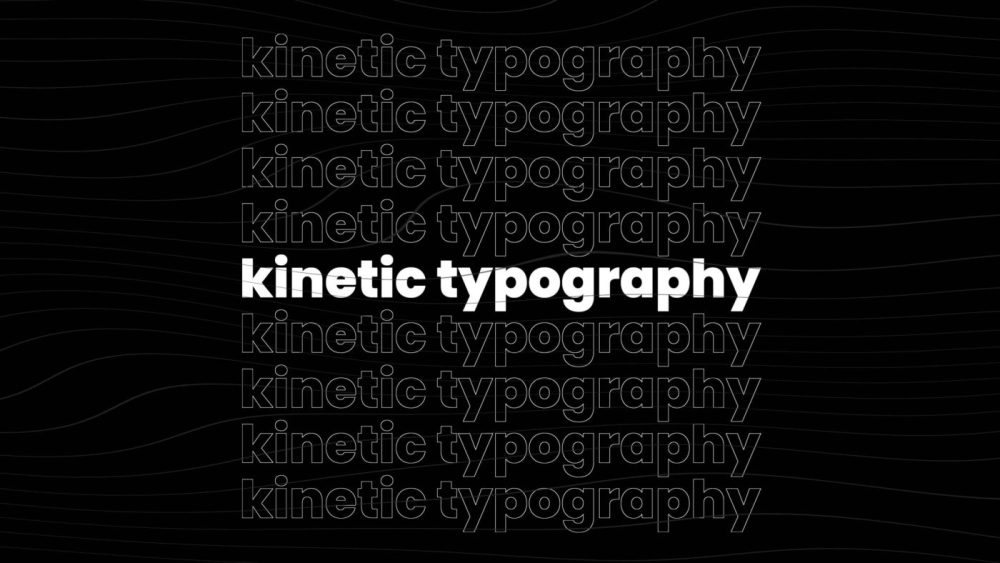
키네틱 타이포그래피[1] is a technique which indulges moving text – usually by using video animations – to express ideas, views, opinion, information, more subtly and interactively. As they technique hints, kinetic typography is everywhere. Airports, commercials, ISBT, malls, railway stations, ads, banners, and almost every possible way one can promote his feelings. You may ask why so? And the answer is straightforward. It’s because moving text is the first thing that catches your eye. It is the moving integrity of the text that appeals to the users. The demand for professionals in kinetic typography has suddenly risen due to the rising use of this technique in web-development. Not just websites or ads within, but videos featuring this have become very popular, be it a mere ‘how to’ video. This adds emphasis which the readers take in more seriously. It is more or less a necessity now for wide-spread and effective advertisement or expression. Especially considering how this is a very budget technique, I only see people using it more and more. It helps firms and individuals create unique textual contexts which are very attractive and eye-catching.

키네틱 타이포그래피의 역사

움직이는 타이포그래피의 초기 흔적은 1959년 알프레드 히치콕 감독의 영화 "북북서로 진로를 돌려라(North by Northwest)"에서 찾아볼 수 있습니다. 1960년 영화 "사이코(Psycho)"에서도 다시 사용되면서 움직이는 텍스트 형태로 정보를 전달하는 새로운 방식이 등장했습니다. 이후 움직이는 타이포그래피는 모든 광고 플랫폼에서 점차 널리 사용되기 시작했으며, 현재는 온라인 웹 개발이나 온라인 비디오 제작에서 가장 보편적으로 사용되는 기법 중 하나가 되었습니다. 이는 효과적인 홍보 수단으로 자리 잡았습니다. 하지만 매력적인 표현에도 불구하고, 움직이는 타이포그래피는 '콘텐츠 부족' 문제를 해결하는 만능 해결책이 되어서는 안 됩니다. 모든 곳에 움직이는 텍스트를 추가하면 오히려 혼란스러워 보이고, 텍스트를 사용하려는 본래의 목적을 무색하게 만들 수 있습니다. 효과적이고 완벽한 결과를 위해서는 전략적인 배치가 필수적입니다.

키네틱 타이포그래피 타입

여러분은 특정 유형의 키네틱 텍스트들을 이해하고 필요에 따라 더욱 효과적으로 활용할 수 있습니다.
  • 슬로우 모션/래피드 모션
  • 확장 동작/수축 동작
  • 호/물결 모양
  • 녹화된 동작
  • 반응 동작
  • 사용자 지정 모션
이러한 운동학적 맥락의 활용도는 엄청납니다.
  • 유익한
  • 서술적
  • 설득력 있는
  • 이야기
  • 감정적인
  • 지식이 풍부한
  • 나타내는
  • 누르다
  • 친절한

시작하기 전에

움직이는 텍스트를 만들기 전에, 온라인 사이트에 표시되는 형식이 일반적인 JPEG 또는 PNG 파일과는 다르다는 점을 알아두는 것이 중요합니다. 마치 움직이는 텍스트가 포함된 비디오와 같습니다. 또한 사용자가 텍스트 애니메이션을 보는 데 소요하는 시간을 고려해야 합니다. 너무 짧아서 눈치채지 못하거나, 너무 길어서 메인 콘텐츠를 보려고 스크롤해서 지나쳐 버리지 않도록 해야 합니다. 웹사이트에서는 짧고 간결한 애니메이션이 권장되지만, 공지나 알림은 조금 더 길게 제작해도 괜찮습니다. 움직이는 텍스트 시퀀스를 만드는 것은 어려울 수도 있고 쉬울 수도 있습니다. GIF를 만드는 것처럼 간단할 수도 있고, 가사 비디오를 녹화하는 것처럼 까다로울 수도 있습니다. 애니메이션 제작 방식 또한 다양합니다. 예를 들어, 회사 웹사이트의 공지 배너는 간단하게 만들 수 있지만, 특정 프로그램이나 프로젝트에 대한 팝업 알림을 만드는 것은 어려울 수 있습니다. 하지만 동일한 결과를 얻을 수 있는 방법은 여러 가지가 있습니다.

키네틱 타이포그래피는 어떻게 구현할까요?

There are several online sites which allow users to create a kinetic text as per their needs. These are majorly click-to-create sites or drag-and-drop programable’s which satisfy the users need by building and recording specific movable text animations lasting a short time. Or another option is by creating your own textual Gifs. This is a very straightforward and upfront way. However, the one and probably the only downside to this is the quality. Gifs really can mess up the text’s quality, which in turn, ruins the browsing experience – be it a website or a video. The safest option is to either learn about Adobe Photoshop’s animation tools or hire an expert who has knowledge regarding the same. Start with small venture projects and slowly build up your momentum for more significant textual projects. There are several tutorials just a click away on Google which are put forth to help individuals be better at kinetic typography. You can even look up for video referencing on YouTube. These are the options through which you yourself can learn another technique. We would still recommend new users to hire professional experts to ease off your workload and provide quality content at better prices. There are various 프리랜서 웹사이트 for that.

결론

움직이는 텍스트를 사용하는 것은 시청자에게 재미있고 몰입감 넘치는 경험을 선사할 수 있습니다. 창작자에게는 그 이상의 의미가 있는데, 지루한 텍스트가 생동감 넘치고 역동적인 움직임으로 변모하는 모습을 지켜볼 수 있기 때문입니다. 이는 독자의 감정, 논리, 사회적 연결망에까지 영향을 미치는, 의도한 바를 효과적으로 전달하는 강력한 방법입니다.

답변을 원하시면 남겨주세요. 다른 용도로는 사용하지 않습니다.

클릭하여 살펴보세요드래그 앤 드롭 또는 반죽 스크린샷

PNG, JPG, GIF, MP4, WebM, MOV · 파일당 최대 20MB · 최대 5개 파일