
Manage applicants & your hiring pipeline
Review applicants, move them through stages, and use your ATS tools.
Managing your applicants and hiring pipeline is crucial for streamlining your recruitment process on the Broxer platform. This guide provides a detailed walkthrough of viewing applicants, moving them through stages, utilizing ATS tools, and effectively managing your talent pool.
Your pipeline
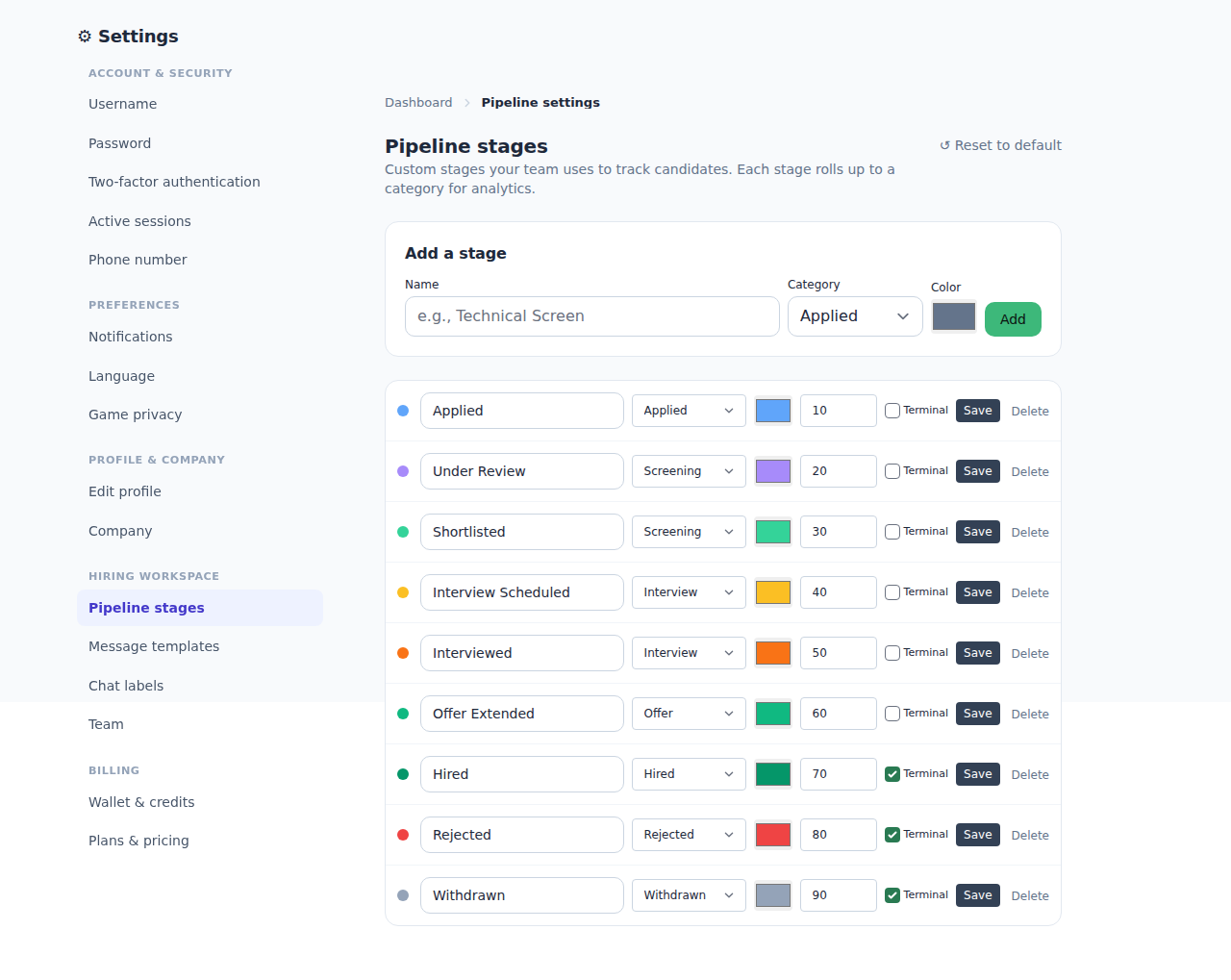
Your hiring pipeline allows you to view and organize applicants based on their status in the recruitment process. Effective management of your pipeline can significantly improve your hiring efficiency.
- Access Your Pipeline: Log in to your Broxer account and navigate to the 'Hiring' section from your dashboard. Click on 'Pipeline' to view all your active job listings and applicants.
- View Applicants: Click on a specific job listing to see the applicants. You will see their profiles, resumes, and associated information.
- Move Applicants Through Stages: For each applicant, you can change their status by selecting an option from the dropdown menu (e.g., 'New', 'In Review', 'Interviewing'). Click 'Save' to update their status.
Tip: Regularly check your pipeline and update applicant statuses to keep your hiring process organized.
Common Gotcha: Be sure to click 'Save' after making changes; otherwise, your updates may not be reflected in the system.
Scorecards, tags & talent pool
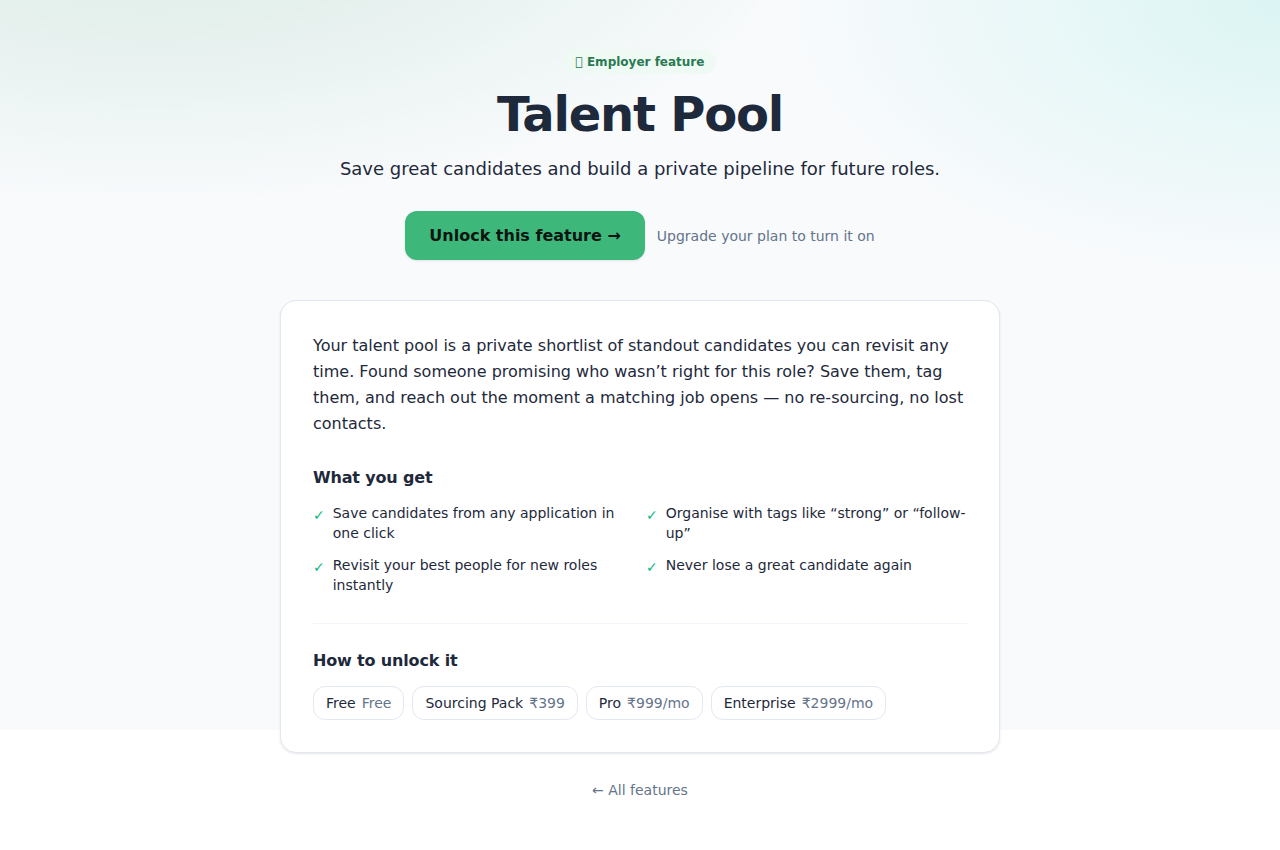
Utilizing scorecards, tags, and your talent pool effectively can help enhance your decision-making process during recruitment.
- Create Scorecards: After reviewing a candidate, you can create a scorecard by clicking on the 'Add Scorecard' button on their profile. Rate the candidate on various attributes like skills, experience, and cultural fit.
- Add Tags: To categorize candidates, use tags. You can add tags by clicking on 'Add Tag' on the candidate's profile, such as 'Shortlisted' or 'Rejected'.
- Access the Talent Pool: In the 'Talent Pool' section, you can see candidates you've tagged or scored, helping you identify potential future hires quickly.
Tip: Using consistent tagging for candidates can make it easier to find them later when you have a new job opening.
Common Gotcha: Tags can be misinterpreted; ensure you use clear and descriptive tags for effective communication within your hiring team.
Invite candidates
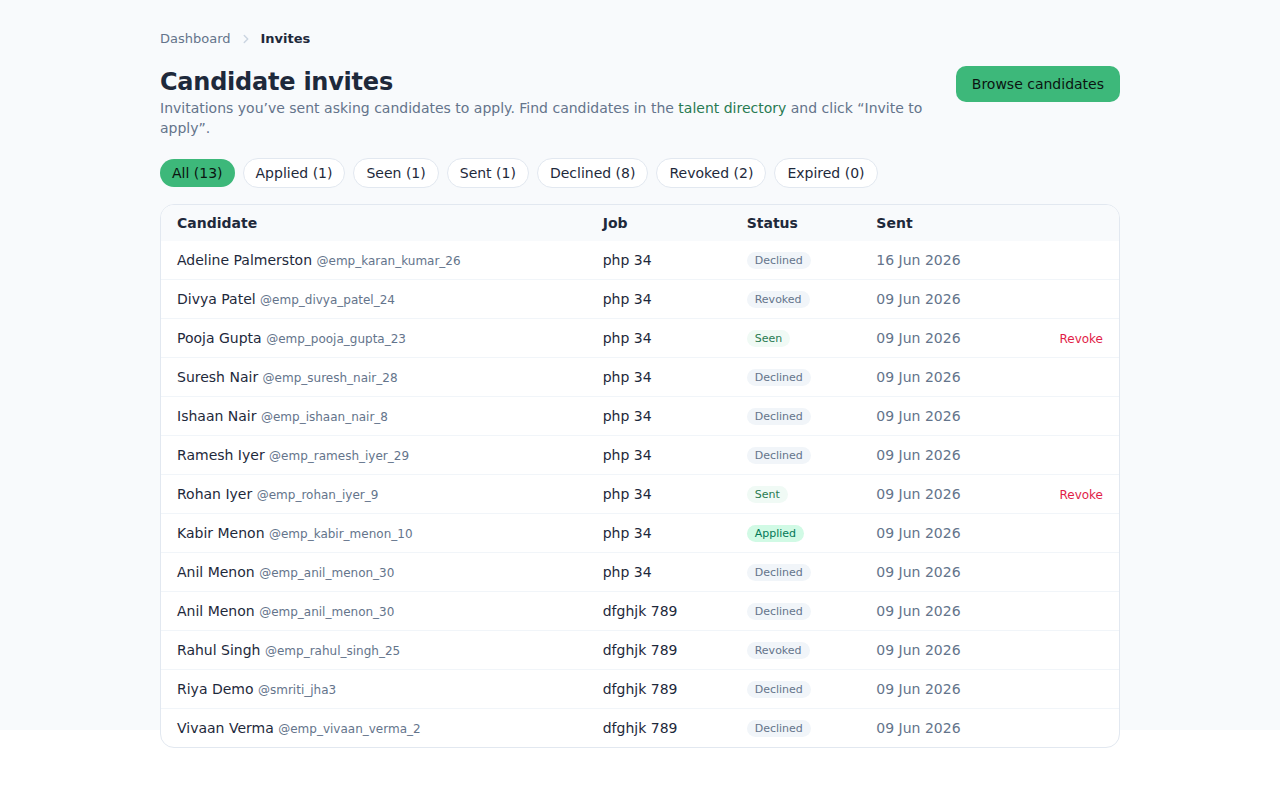
If you find talent in the Broxer directory, inviting them directly to apply for your job listing can increase the quality of your applicant pool.
- Access the Talent Directory: From your dashboard, navigate to the 'Talent Directory' section where you can search for candidates.
- Select Candidates: Use the filters to find suitable candidates based on skills and location. Once you've identified a candidate, click on their profile.
- Invite Candidates: On the candidate's profile, click the 'Invite to Apply' button. This will send them an invitation to apply for the specific job listing.
Tip: Personalize the invitation message to improve the chances of the candidate responding positively.
Common Gotcha: Ensure the job listing is live and accepting applications; otherwise, the invitation may not direct candidates correctly.
Reject & auto-reject
Managing rejections thoughtfully is part of maintaining a positive employer brand, and using the auto-reject feature helps streamline the process for candidates who do not meet basic requirements.
- Reject Candidates: To manually reject a candidate, go to their profile, select the 'Reject' option, and provide feedback if necessary. Click 'Confirm' to finalize the rejection.
- Use Auto-Reject Feature: Set specific criteria for auto-rejecting candidates (e.g., lack of required qualifications). Navigate to the job settings and input the criteria. Candidates who don't meet these will automatically be moved to the 'Auto-Rejected' tab.
- Access Auto-Rejected Tab: Review candidates in the 'Auto-Rejected' section to ensure no qualified candidates were mistakenly filtered.
Tip: Providing constructive feedback to rejected candidates can enhance your company's image and may encourage them to apply for future openings.
Common Gotcha: Double-check your criteria for auto-rejecting candidates; overly stringent requirements can filter out potentially good fits.