Broxer에서의 메시징
채용 담당자 및 구직자와 채팅하고, 누가 나에게 연락할 수 있는지 직접 관리하세요.
Welcome to the Broxer help guide on messaging! Here, you'll learn how to effectively chat with recruiters and candidates, manage your messaging settings, and gain control over who can reach you on our platform.
Chats & attachments
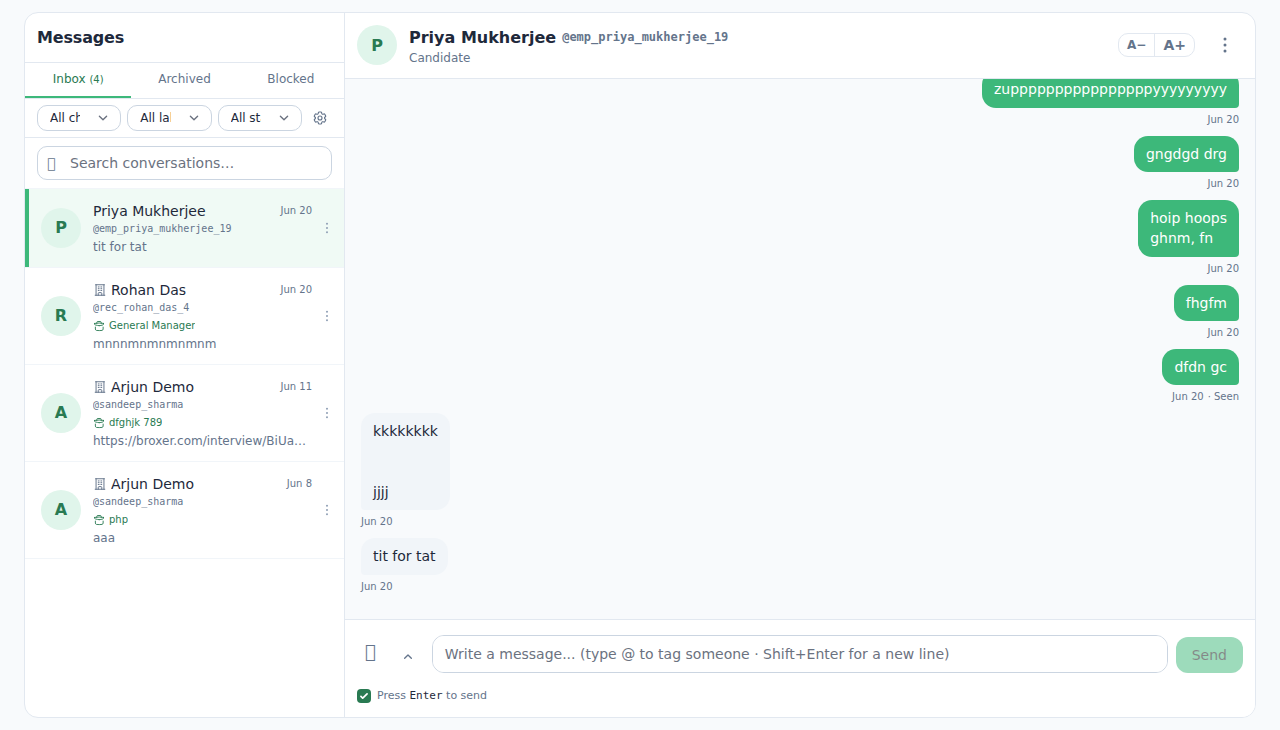
Chats on Broxer allow seamless communication between candidates and recruiters. You can start conversations, reply to threads, and send attachments to share important documents or details.
- Starting a Chat: To initiate a conversation, click on the 'Messages' tab located on your dashboard. From there, select 'Start a Chat' and choose the user you wish to message.
- Creating a Thread: Once you've opened a chat, you can create a thread by typing your message in the text box and hitting 'Send.' Threads help keep conversations organized, especially when discussing multiple topics.
- Sending Attachments: To send a file, click on the paperclip icon in the chat window. Select the file from your device and hit 'Send.' Supported file types include PDFs, images, and Word documents.
Tip: Make sure your attachments are under 5MB to avoid errors during upload.
Common Gotcha: If you don't see the user you're trying to chat with, confirm that you've connected with them on Broxer; chats can only be initiated with users in your network.
Limits & BroxMail
Understanding the messaging limits on Broxer is essential for effective communication. Additionally, BroxMail allows you to reach anyone on the platform, irrespective of connection status, enhancing your networking opportunities.
- Message Sending Limits: As a standard user, you can send up to 50 messages per day. This limit resets at midnight IST. To maximize your outreach, plan your messaging strategy accordingly.
- Using BroxMail: BroxMail is a premium feature that lets you send messages to any user on Broxer, even if they haven't approved your connection request. To use this feature, click the 'Send via BroxMail' option when composing a message.
- Controlling Who Can Message You: Navigate to your account settings and find the 'Privacy' section. Here, you can control your visibility settings and choose whether to allow messages from all users or only those in your network.
Tip: Regularly review your privacy settings to ensure you are comfortable with who can reach out to you.
Common Gotcha: If you exceed the daily message limit, you won't receive notifications for additional messages until the limit resets, so plan your outreach thoughtfully!