
Account & security settings
Manage your password, 2FA, sessions, language, notifications and more.
Managing your account and security settings on Broxer is essential for safeguarding your personal information and ensuring a smooth user experience. This guide will walk you through the important aspects of your account, including password management, two-factor authentication, session reviews, username settings, language preferences, notification controls, and how to delete your account.
Password & 2FA
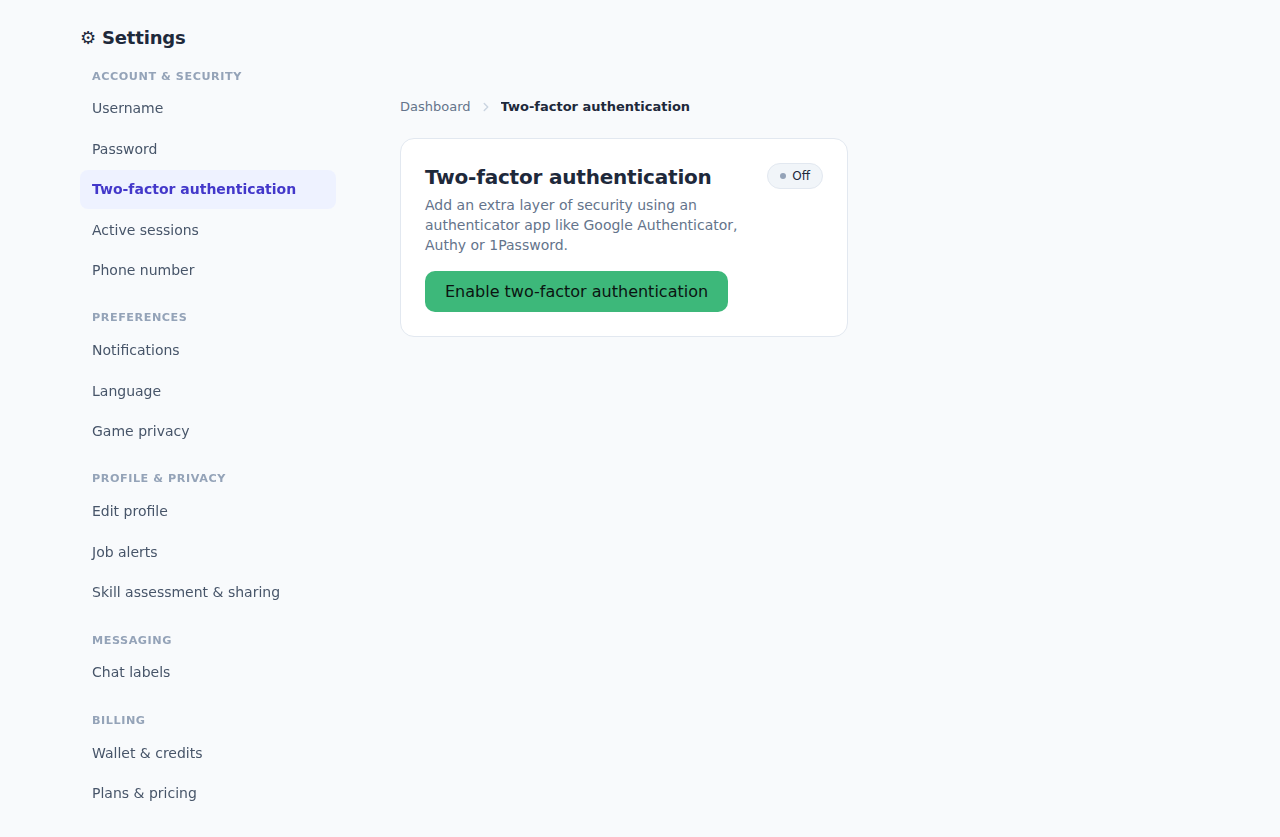
Changing your password and enabling two-factor authentication (2FA) are essential steps to enhance your account security. Here’s how to manage these settings:
- Changing your password:
- Log in to your Broxer account.
- Go to "Account Settings."
- Select "Security Settings."
- Click on "Change Password."
- Enter your current password, then your new password twice.
- Save the changes.
- Enabling 2FA with an authenticator app:
- In "Security Settings," look for "Two-Factor Authentication."
- Click “Enable 2FA.”
- Follow the instructions to scan a QR code using your authenticator app (like Google Authenticator or Authy).
- Enter the verification code from the app to confirm.
- Save your backup recovery codes securely.
- Recovery codes: Make sure to keep your recovery codes safe. If you lose access to your authenticator app, these codes will help you regain access to your account.
- Lost device:
- If you lose your device, use the recovery codes to log in from another device.
- Consider temporarily disabling 2FA under "Security Settings" until you regain access.
Tip: Regularly update your password and enable 2FA to enhance your security.
Gotcha: If you do not save your recovery codes securely, you may lose access to your account if you switch devices.
Sessions & phone

Managing your active sessions and phone details keeps your account secure and allows you to stay updated. Follow these steps:
- Reviewing active sessions and logging out everywhere:
- Go to "Account Settings."
- Select "Sessions."
- View the list of all active sessions.
- Click "Log Out of All Sessions" if you suspect unauthorized access.
- Changing or verifying your phone number:
- In "Account Settings," navigate to "Phone Settings."
- Update your phone number and choose to verify it via SMS.
- Enter the verification code sent to your new number.
Tip: Regularly review your active sessions to ensure there are no unauthorized logins.
Gotcha: If you change your phone number without verifying it, you may encounter issues receiving 2FA codes.
Username & language
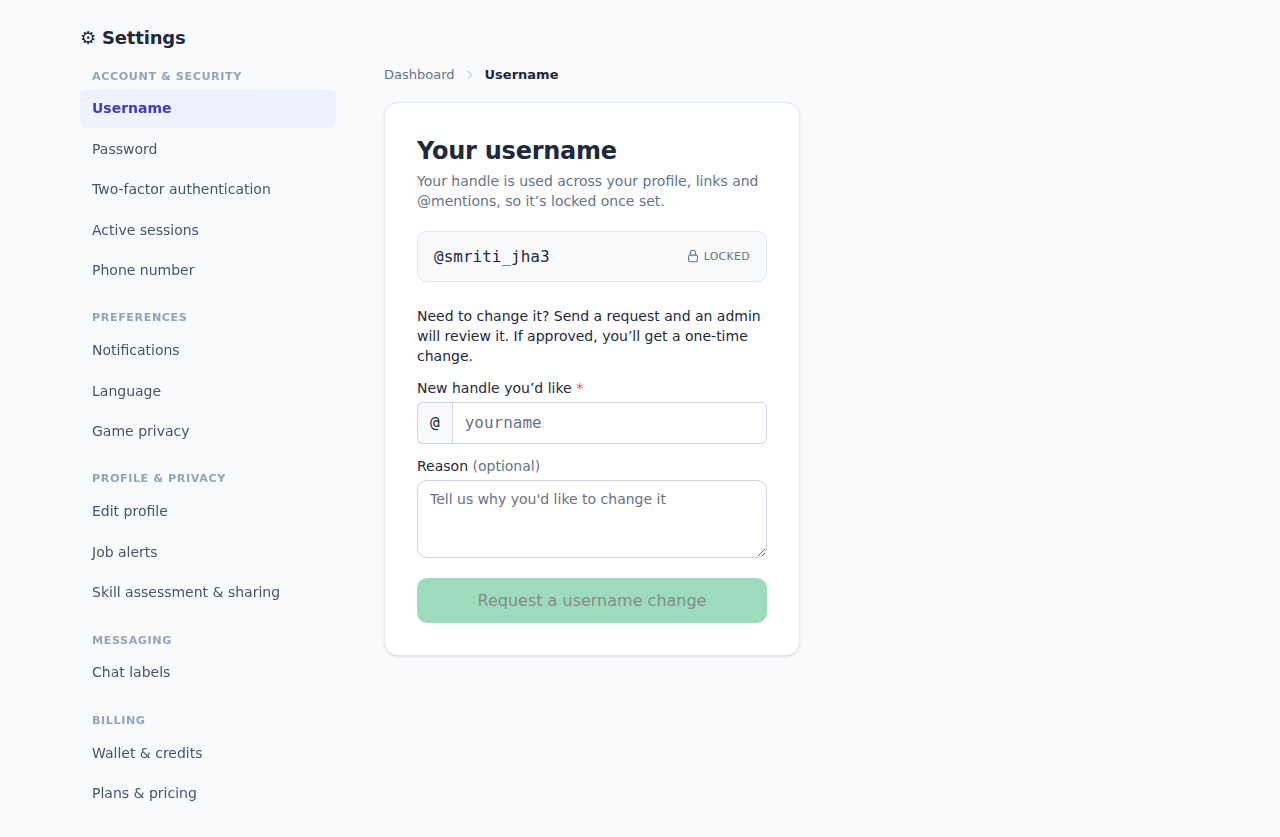
Your username helps personalize your account experience but can be locked to maintain integrity. Here’s how to manage it:
- Why username locks: Username locks prevent frequent changes and maintain consistency for other users. It’s essential to choose a memorable name.
- Requesting a one-time change:
- Contact Broxer support via the "Help" section.
- Submit a request for a one-time username change with your desired username.
- Await confirmation from support to proceed.
- Changing language preferences:
- In "Account Settings," navigate to "Language Preferences."
- Select your preferred language from the dropdown menu.
- Save your changes.
Tip: Choose a username that reflects your professional identity, as it is often visible to employers.
Gotcha: Be cautious when requesting a username change; repeated requests may not be accommodated.
Notifications & deleting your account
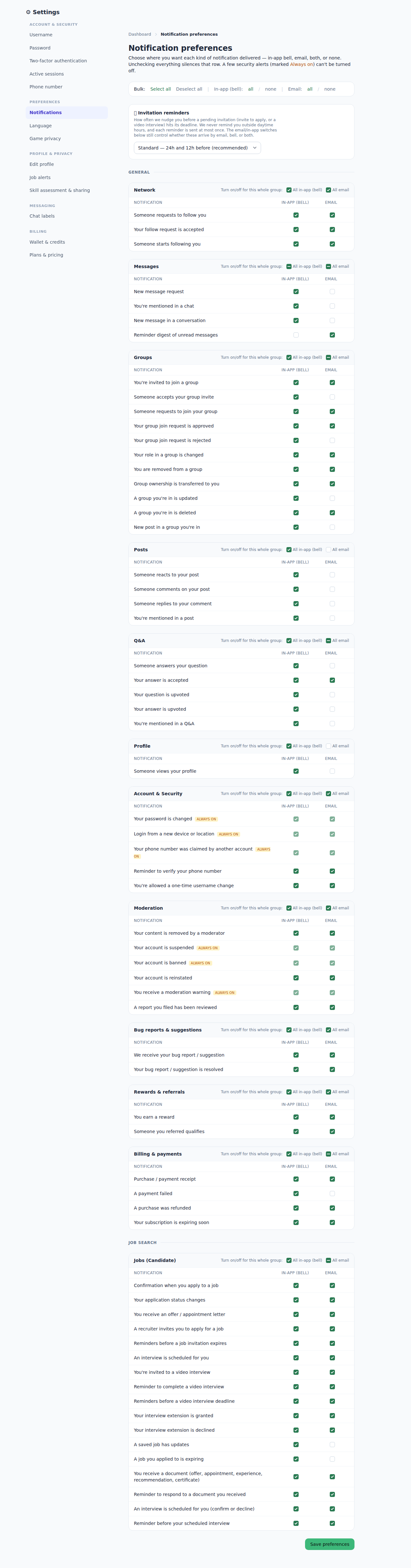
Staying informed through notifications while maintaining control over your account can enhance your Broxer experience. Here’s how to manage notifications and delete your account:
- Choosing which emails/alerts you receive:
- Go to "Account Settings."
- Select "Notification Preferences."
- Check or uncheck the boxes for the types of notifications you want to receive.
- Save your changes.
- Deleting your account and data:
- Navigate to "Account Settings."
- Scroll down to "Delete Account."
- Follow the prompts to confirm deletion.
- Recognize that this action is irreversible, and all data will be lost.
Tip: Regularly check your notification settings to ensure you receive relevant updates.
Gotcha: Deleting your account is final; make sure you have backups of any important information before proceeding.