
Getting started as a candidate
Create your account, verify it, and find your way around Broxer.
Welcome to Broxer! This guide will help you get started as a candidate by creating your account, verifying it, and navigating the platform with ease.
Create your account

Creating your account on Broxer is the first step toward finding job opportunities tailored to your skills. It’s crucial to distinguish between candidate accounts and employer accounts as this helps in setting your preferences correctly.
- Visit the Broxer website and click on the "Sign Up" button at the top right corner.
- Select "Candidate." Ensure you are creating a candidate account, as employer accounts have different functionalities.
- Fill in your details. Provide the required personal information such as your name, email address, and phone number.
- Sign up with Google. If you prefer, you can streamline the process by clicking on the "Sign up with Google" option. You will be prompted to log into your Google account.
- Submit your information. After filling in all the details, click on the "Create Account" button.
Tip: Ensure that you use an email and phone number that you frequently check, as you'll need to verify both.
Gotcha: If you mistakenly select the employer option, you'll need to start the process over, as the functionalities are different.
Verify your email
Email verification is an essential step to ensure the security of your account. Once you verify your email, you can fully access all features of the Broxer platform.
- Check your inbox. After signing up, look for a verification email from Broxer.
- Click the link. The email contains a link that directs you back to Broxer’s website. Just click on the link to verify your email address.
- Look for confirmation. You should see a message indicating your email has been successfully verified after clicking the link.
- Resend verification email if necessary. If you can’t find the email, return to the login page and click "Resend verification email." Follow any prompts as needed.
Tip: Check your spam folder if you don’t see the verification email in your inbox.
Gotcha: If you wait too long to verify your email, the link may expire, and you’ll need to request a new one.
Verify your phone (WhatsApp)
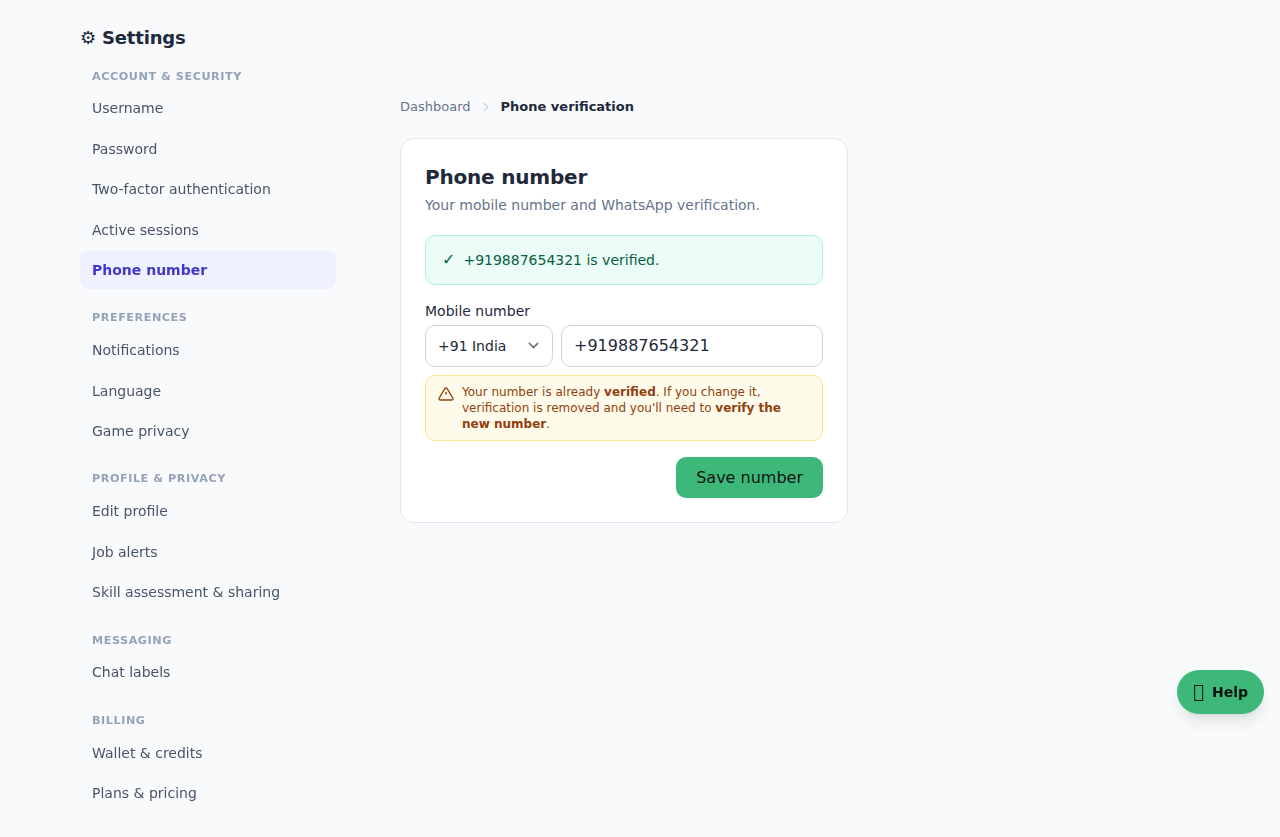
Verifying your phone number helps enhance account security and enables easier communication regarding job opportunities. Broxer uses WhatsApp for phone verification, which is convenient for many users.
- Enter your phone number. On the phone verification page, input your WhatsApp number accurately.
- Check for the unique code. A unique code will be displayed on your screen. Make a note of this code.
- Open WhatsApp. Go to your WhatsApp application on the same phone.
- Send a message. Send the exact code you noted earlier to Broxer’s official WhatsApp number.
- Confirmation of verification. Once your message is received, Broxer’s system will automatically verify your number.
Tip: Ensure that your WhatsApp is active and installed on the phone number you are using for verification.
Gotcha: If you enter an incorrect phone number or code, the verification will fail. You will need to restart the process.
Your dashboard
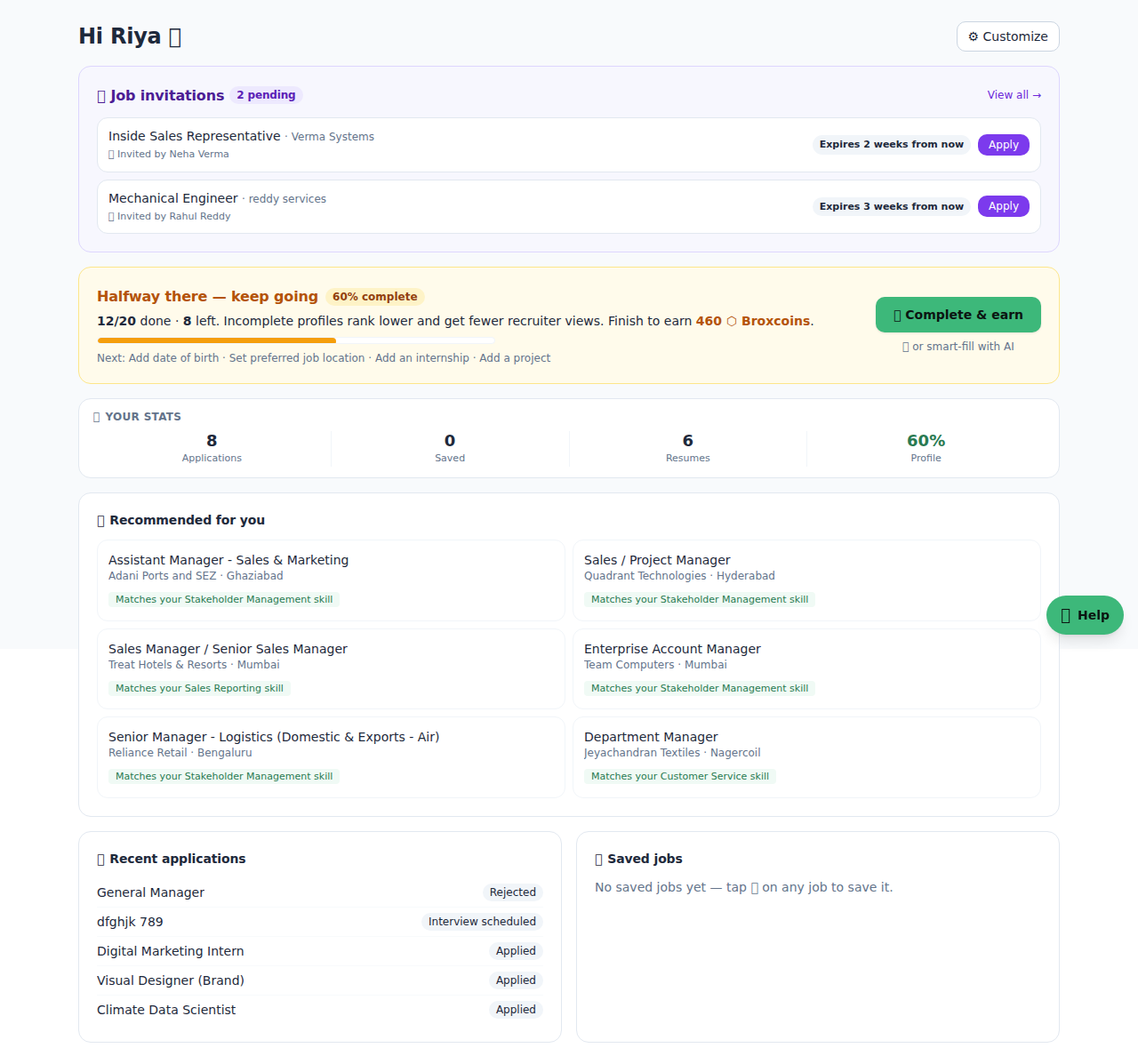
Your candidate dashboard is your central hub for managing your job search and applications. Familiarizing yourself with the layout will help streamline your experience on Broxer.
- Access your dashboard. After logging in, navigate to your dashboard from the main menu.
- Explore the widgets. You will find various widgets including:
- Job Recommendations: Personalized job listings based on your profile.
- Application Status: Track the status of your job applications.
- Profile Completeness: A progress bar indicating how complete your profile is.
- Customize your preferences. Click on the settings icon to customize notifications and other preferences.
Tip: Regularly update your profile to increase the chances of job recommendations that fit your skills and interests.
Gotcha: Incomplete profiles may result in fewer job recommendations, so strive to fill out all sections.