
Offers, documents & e-signing
Send offers and HR documents that candidates can e-accept securely.
Welcome to Broxer’s help guide for employers! In this section, we will walk you through the process of sending offers and managing HR documents securely through e-signing.
Make an offer
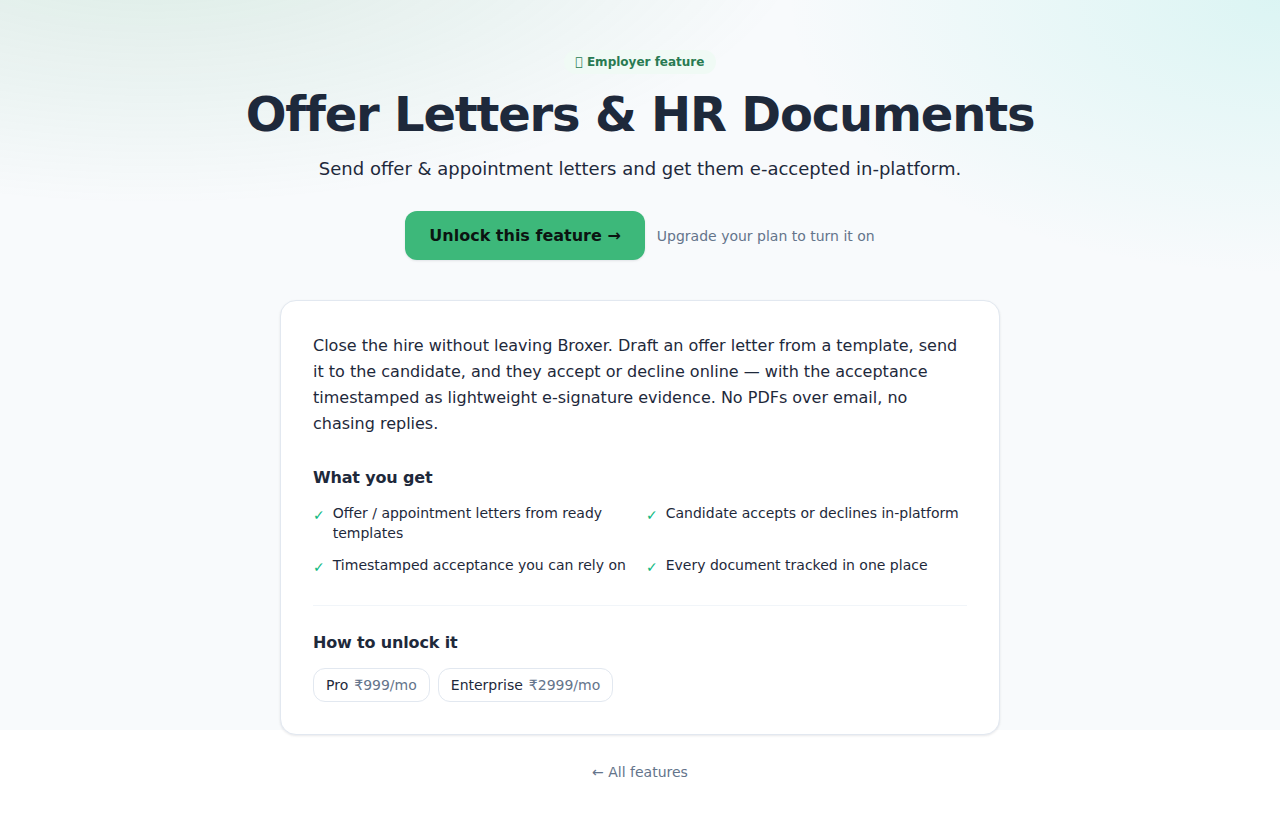
Sending a job offer to a candidate is a crucial step in the hiring process. A clear and professionally written offer letter helps to formalize the job offer and sets the stage for the employment relationship.
- Log in to your Broxer account.
- Select the candidate you wish to make an offer to from your candidate list.
- Create a new offer by clicking on the “Make Offer” button.
- Fill in the offer details:
- Job title
- Salary (in INR)
- Start date
- Additional benefits
- Choose or create an offer letter template using the placeholders e.g., {CandidateName}, {JobTitle} to tailor the document.
- Review the offer letter for accuracy and professionalism.
- Send the offer to the candidate, who will receive a notification to e-accept it.
Tip: Always ensure the offer details are accurate before sending. This helps prevent misunderstandings later on.
Common Gotcha: Ensure candidates have a valid email address in their profiles to receive offer notifications. If their email is incorrect, the offer will not reach them.
Document Studio
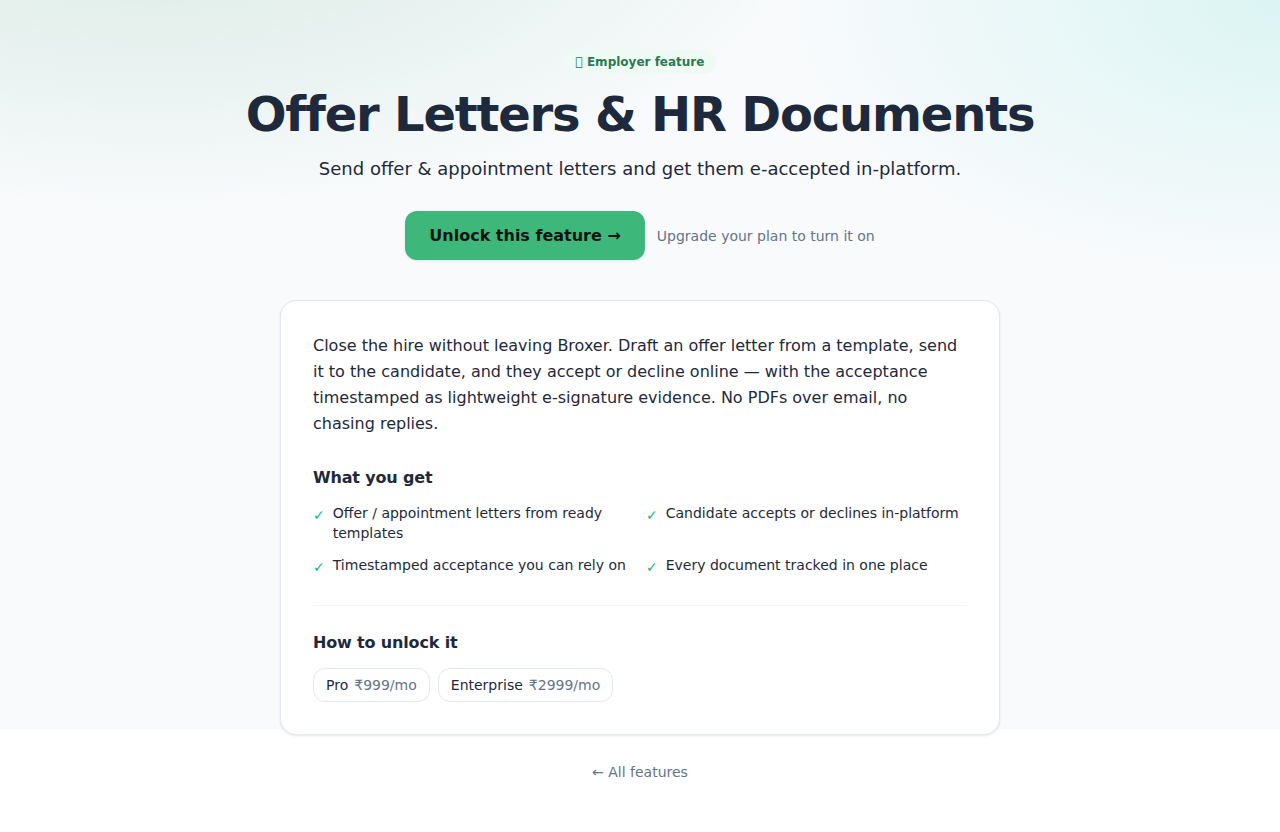
The Document Studio feature allows you to create, manage, and send various HR documents, including offer letters and contracts, efficiently and securely.
- Log in to your Broxer account.
- Navigate to the Document Studio section from your dashboard.
- Create a new document by selecting “New Document.”
- Choose an HR document type such as an offer letter or employment contract.
- Use templates available in the Document Studio to ensure consistency across documents.
- Add branding to the PDF by inserting your company logo and adjusting formatting as necessary.
- Fill in necessary details using placeholders for easy personalization.
- Send the document for e-signing by entering the candidate's email and selecting the e-sign option.
- Enable OTP verification for added security during the e-signing process.
- Track the document for e-sign completion through the audit trail feature provided.
- Import existing DOCX/PDF documents to make edits or to reuse content seamlessly.
Tip: Utilize the audit trail feature to keep track of each document and its signing status for better management.
Common Gotcha: Ensure candidates are aware that they will receive an OTP on their registered mobile number for signing. If they miss this step, the signing process will be delayed.