
Search & apply to jobs and internships
Find the right roles, apply, and track every application in one place.
Welcome to Broxer! This guide will help you search for, apply to, and keep track of jobs and internships effectively, ensuring you never miss a great opportunity.
Search & filter
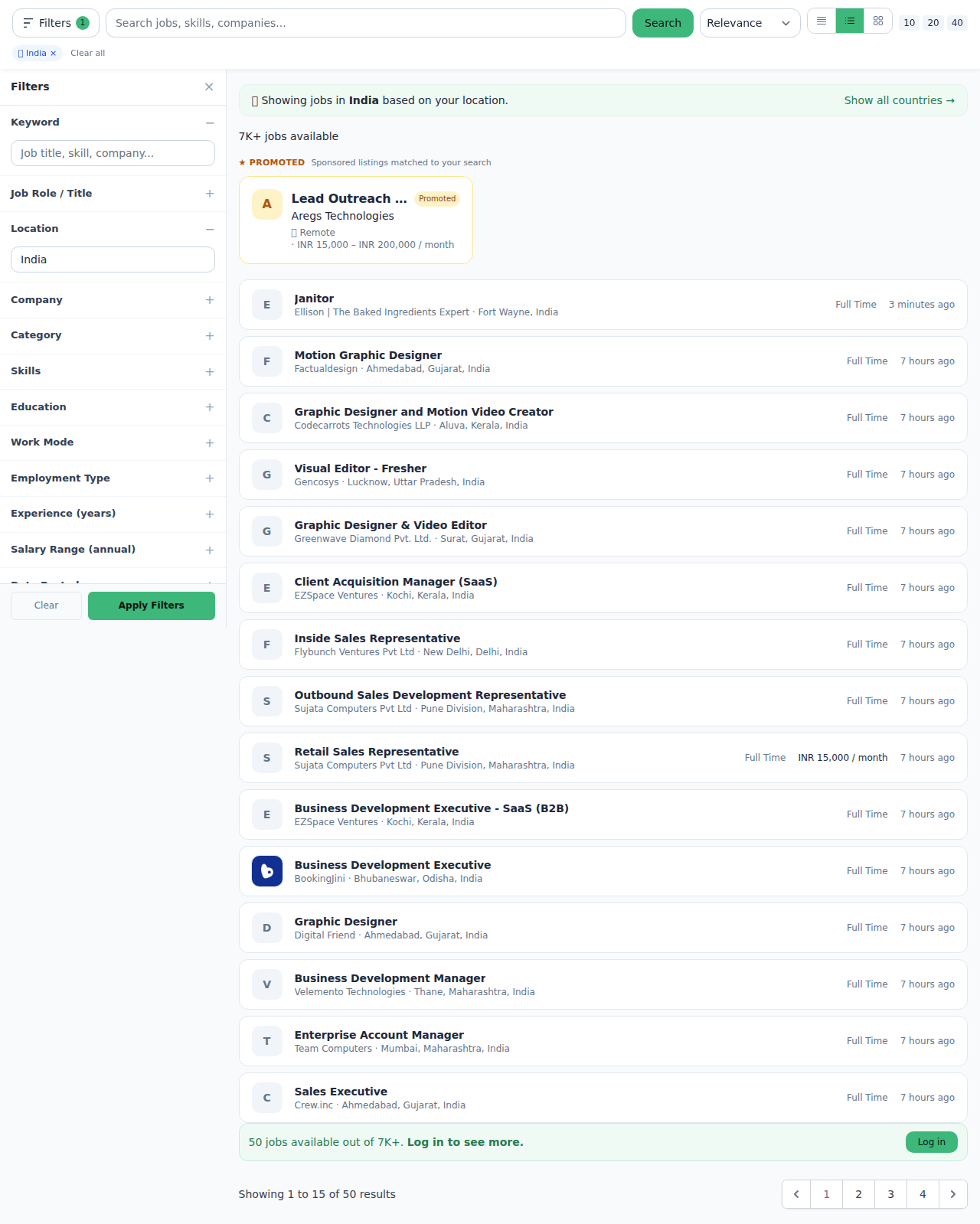
Finding the right jobs and internships is crucial for your career journey. With Broxer, you can easily search and filter roles based on your preferences, such as job title, location, and whether the position is remote.
- Navigate to the jobs page: Log in to your Broxer account and go to the 'Jobs' section from the main menu.
- Use the search bar: Type in keywords related to the job or internship you're interested in, such as "Marketing" or "Software Development."
- Apply filters: Use the filters available on the side menu to specify your location (city or state), job type (full-time, part-time, internship), and if you want remote options.
- Review search results: Browse through the list of available roles that match your criteria.
Tip: Be specific with your keywords to get the most relevant results. If you are looking for "full-stack developer" positions, use that exact phrase.
Common Gotcha: Ensure your location settings are correct; otherwise, you might miss local opportunities or get irrelevant results.
Save jobs for later

Saving jobs is a great way to keep track of opportunities you're interested in without the pressure of applying immediately. Broxer allows you to save listings for future reference.
- Find a job you like: After searching, click on the job title to view the job details.
- Save the job: Click the 'Save' button located on the job details page.
- Access your saved jobs: Go to your profile and click on the 'Saved Jobs' section to view all the listings you've saved.
Tip: Regularly review your saved jobs to ensure they still align with your career goals and to keep your options open.
Common Gotcha: You may need to log into your account to save jobs; ensure you are logged in to access this feature.
Apply to a job
Applying for jobs is your chance to make a strong impression on potential employers. Follow these steps to submit your application effectively, including attaching your résumé and answering screening questions.
- Select a job: Go to the 'Jobs' section and click on the job title you’re interested in.
- Click 'Apply': On the job details page, find the 'Apply' button and click it.
- Attach your résumé: You will be prompted to upload your résumé or CV. Choose the file from your device.
- Answer screening questions: Fill out any required screening questions or knockout questions that appear.
- Submit your application: Review your application details and click 'Submit.'
Tip: Tailor your résumé and answers to the job description for the best chance of getting noticed by employers.
Common Gotcha: Double-check your attached documents to ensure they are the correct versions before submission.
Application limits
Broxer offers a free monthly application limit to maintain a quality experience for all users. Here’s how you can manage and potentially raise this limit if needed.
- Check your current limit: Go to your account settings where you can view your application quota for the month.
- Monitor your applications: Keep track of how many applications you have submitted within the month.
- Request an increase: If you need to apply for more roles, you can submit a request through the support section, providing reasons for your request.
Tip: Plan your applications wisely throughout the month to get the most out of your limit.
Common Gotcha: Submitting too many requests for increased limits without clear justification might lead to denials.
Track your applications
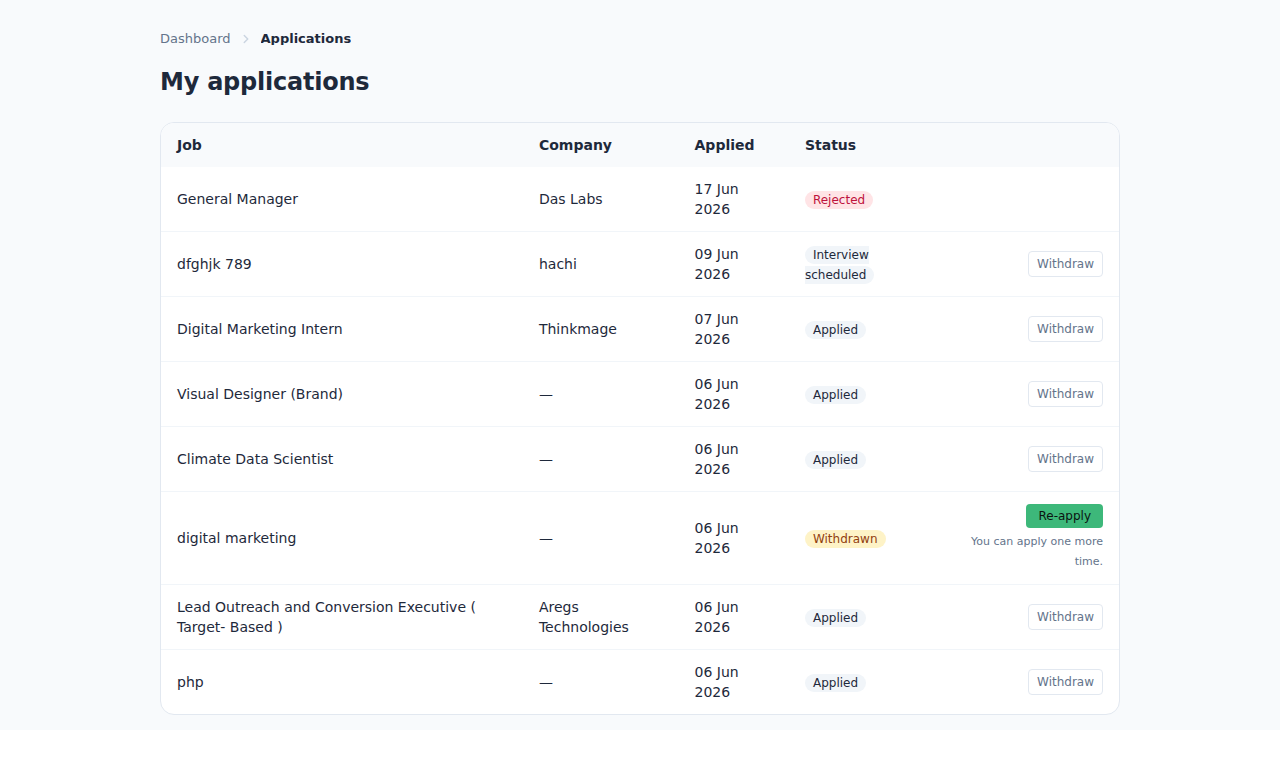
Keeping track of your applications helps you stay organized and informed about your job search progress. Broxer provides a simple way to view the status of your applications.
- Go to your profile: Log in and navigate to your profile section.
- Access 'My Applications': Click on the 'My Applications' tab to see all your submitted applications.
- Review application statuses: Check the current status of each application, which may include 'Applied,' 'Shortlisted,' or 'Rejected.'
- Withdraw or re-apply: If necessary, you can withdraw your applications or consider re-applying for roles with better insights on your experience.
Tip: Keep a record of application dates to follow up with potential employers if you haven't heard back within a reasonable time frame.
Common Gotcha: Be mindful of the time you spend refreshing applications in order to avoid confusion; the status updates may take some time to process.