Video interviews (employer)
Screen at scale with async video interviews and AI scoring.
Conducting video interviews asynchronously allows employers on Broxer to efficiently screen candidates at scale while leveraging AI technology for scoring. This guide provides detailed steps to create interviews, invite applicants, and utilize AI scoring effectively.
Create & invite
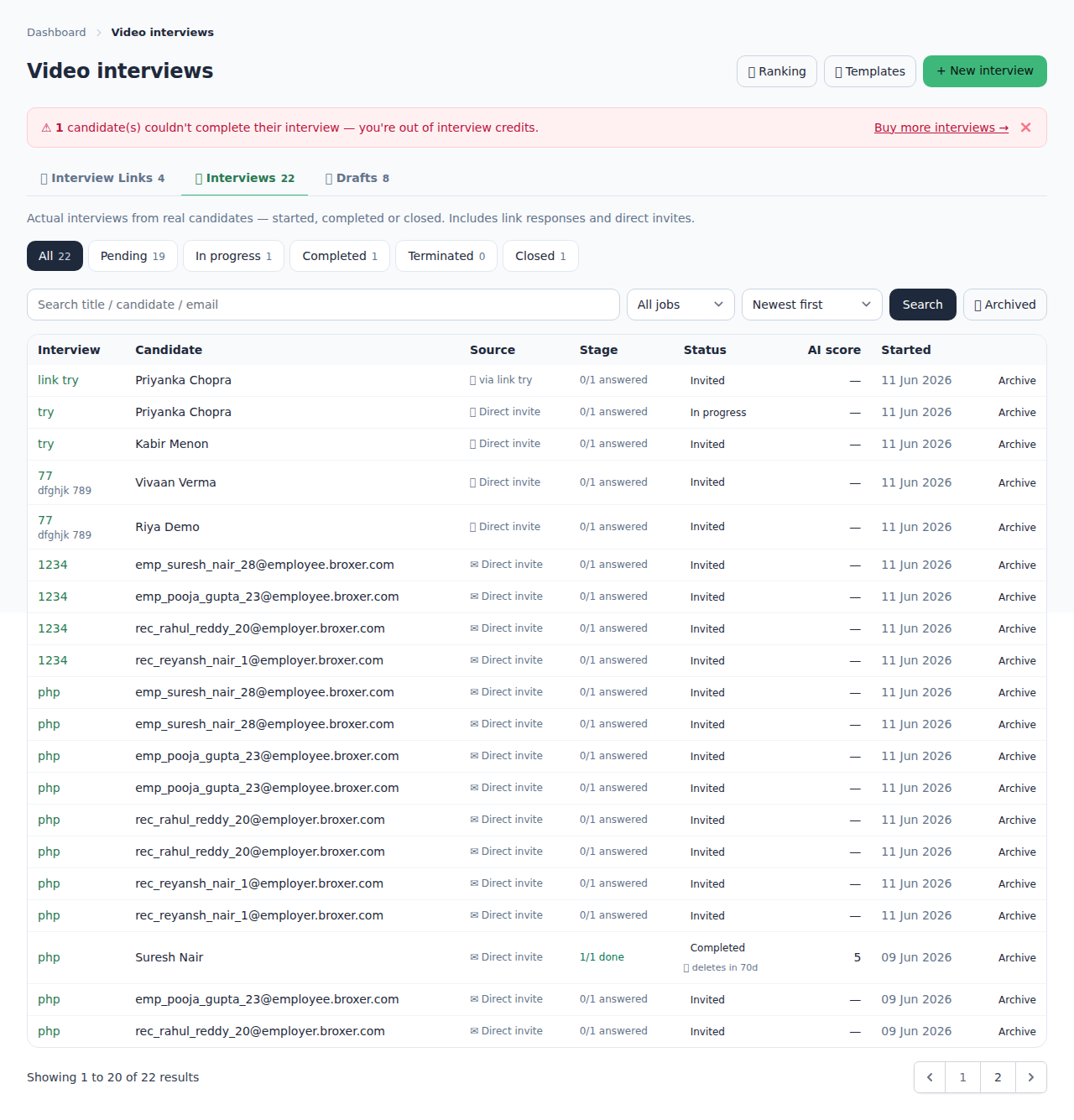
Creating and inviting candidates to video interviews is an essential step in your hiring process. This feature enables you to reach multiple candidates without the need for scheduling conflicts.
- Log in to your Broxer employer account.
- Navigate to the 'Interviews' section. In the main dashboard, find and click on the 'Interviews' tab.
- Select 'Create Video Interview'. Choose the options available for asynchronous video interviews.
- Fill out the interview details. Include job title, required skills, and any specific instructions for candidates.
- Set the maximum number of participants. Decide how many applicants can complete the interview after sharing the open-to-all link.
- Generate an interview link. This link can be shared with multiple candidates, allowing them to submit answers at their convenience.
- Invite applicants. You can either email candidates directly from the platform or share the link via other communication methods.
Tip: Provide clear guidelines on what candidates should prepare ahead of the interview to ensure high-quality responses.
Common Gotcha: Remember to check the maximum participant limit before sharing the link, as exceeding this limit may lead to skipped candidates.
Templates, AI scoring & retention
Utilizing templates and AI scoring is vital for evaluating candidates effectively. This allows for consistent scoring criteria and helps in analyzing candidate responses quickly.
- Create an interview template. Within the 'Interviews' section, choose the 'Templates' option to design a new interview format tailored to your job's requirements.
- Incorporate AI scoring. After candidates complete their interviews, Broxer's AI will analyze the responses based on your defined criteria.
- Review AI ranking. Access the scoring dashboard to view how candidates rank based on their AI scores and transcriptions.
- Check transcription accuracy. Broxer provides a transcription of each interview, allowing you to verify the AI's evaluation.
- Set retention policies. Decide how long you want to keep the video interviews and transcriptions. Note that after the retention period expires, the data will be automatically deleted to ensure compliance with data protection regulations.
Tip: Regularly update your templates to reflect industry trends and skills that are increasingly in demand.
Common Gotcha: Ensure to familiarize yourself with the auto-delete settings to avoid losing valuable data that you may wish to retain longer.