
Create & manage résumés
Build polished résumés with templates and use them when you apply.
Creating and managing a polished résumé is a crucial step in your job search process. With Broxer, you can easily build, store, and use your résumés for job applications, ensuring you present your best self to potential employers.
The résumé builder
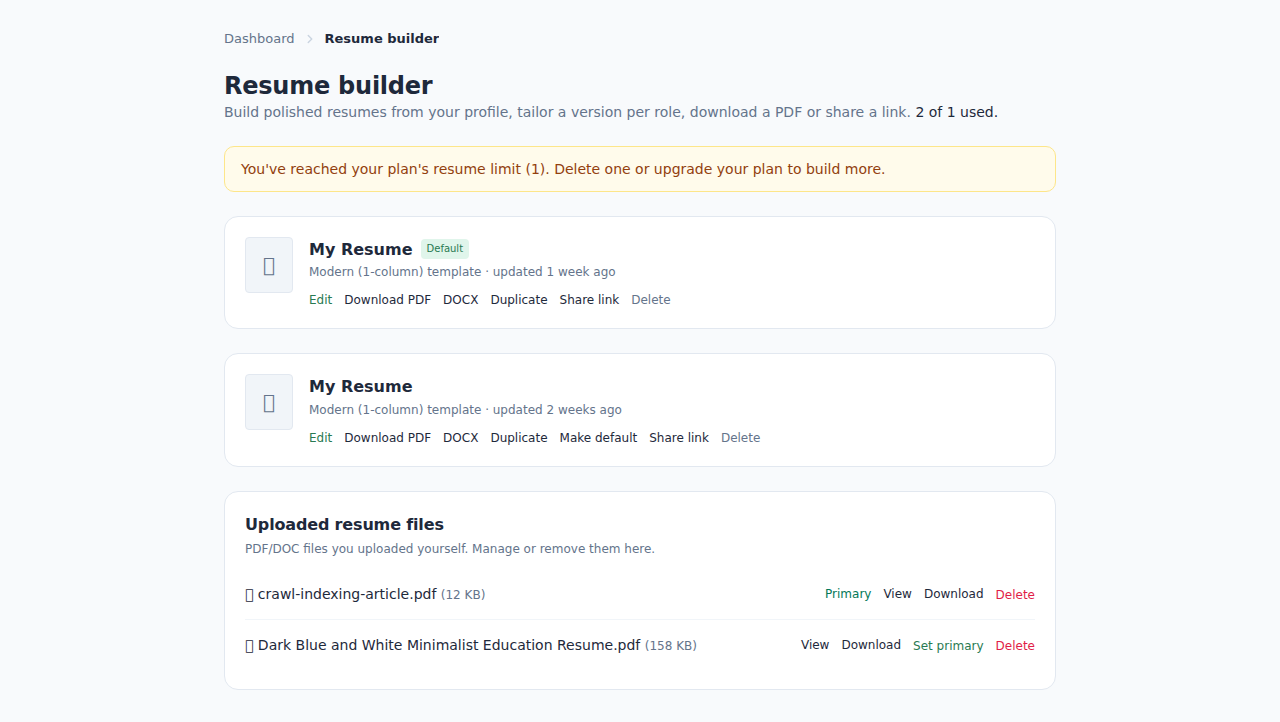
The résumé builder is a user-friendly tool that allows you to create well-structured résumés using customizable templates. This feature is especially useful when you want to tailor your résumé for different job opportunities.
- Log in to your Broxer account.
- Navigate to the "Résumé" section. You will see an option to create a new résumé.
- Select a template. Browse through the available templates and choose one that fits your style.
- Fill in your information. Input your personal details, work experience, education, skills, and any other relevant sections. Ensure the information is accurate and up-to-date.
- Save your résumé. After completing your details, click on the save button to store your résumé. You can create multiple résumés, so feel free to craft different versions tailored to specific job applications.
Tip: Use templates as a guide but personalize the content to reflect your unique experiences and skills.
Common gotcha: Make sure to double-check spelling and grammar before finalizing your résumé, as errors can create a negative impression with employers.
Download as PDF
Downloading your résumé as a PDF ensures it maintains its formatting and looks professional. It is important that the format you preview on-screen matches what you will send to employers.
- Select the résumé you want to download. Go to your résumé section and choose the specific résumé you wish to export.
- Click on the "Download as PDF" button. This option is typically located near your résumé preview.
- Preview your résumé. Make sure the document displayed matches what you see on your screen. This is your chance to catch any last-minute changes.
- Confirm the download. Click the final download button when you are satisfied with the preview.
Tip: Keep a consistent download folder on your device to organize your resumes and make it easier to locate them later.
Common gotcha: Sometimes, the PDF might not include images or links; ensure that all critical information is clearly legible in the text format.
Use it when applying
Using your saved résumé during the application process is straightforward and can help you quickly submit applications to multiple opportunities.
- Search for job listings. Use Broxer’s job search tool to find jobs that match your skills and interests.
- Select a job posting. Click on the job to view the details and application requirements.
- Choose your résumé. During the application process, you will be prompted to select a résumé from your saved templates.
- Review and attach. Make sure the selected résumé is the most relevant one for this job. You can also attach a différent file if needed.
- Submit your application. After reviewing your application, click on the submit button to send your résumé to the employer.
Tip: Tailor your résumé for each job application by focusing on the skills and experiences relevant to the specific role.
Common gotcha: Always review the job application requirements to ensure you are submitting the right résumé and adhering to file size limits if applicable.