
Set up your company & team
Create your company profile, add branding, and invite your hiring team.
Welcome to Broxer! In this guide, we will walk you through the process of setting up your company and team, ensuring you have a strong foundation for your hiring journey.
Company profile
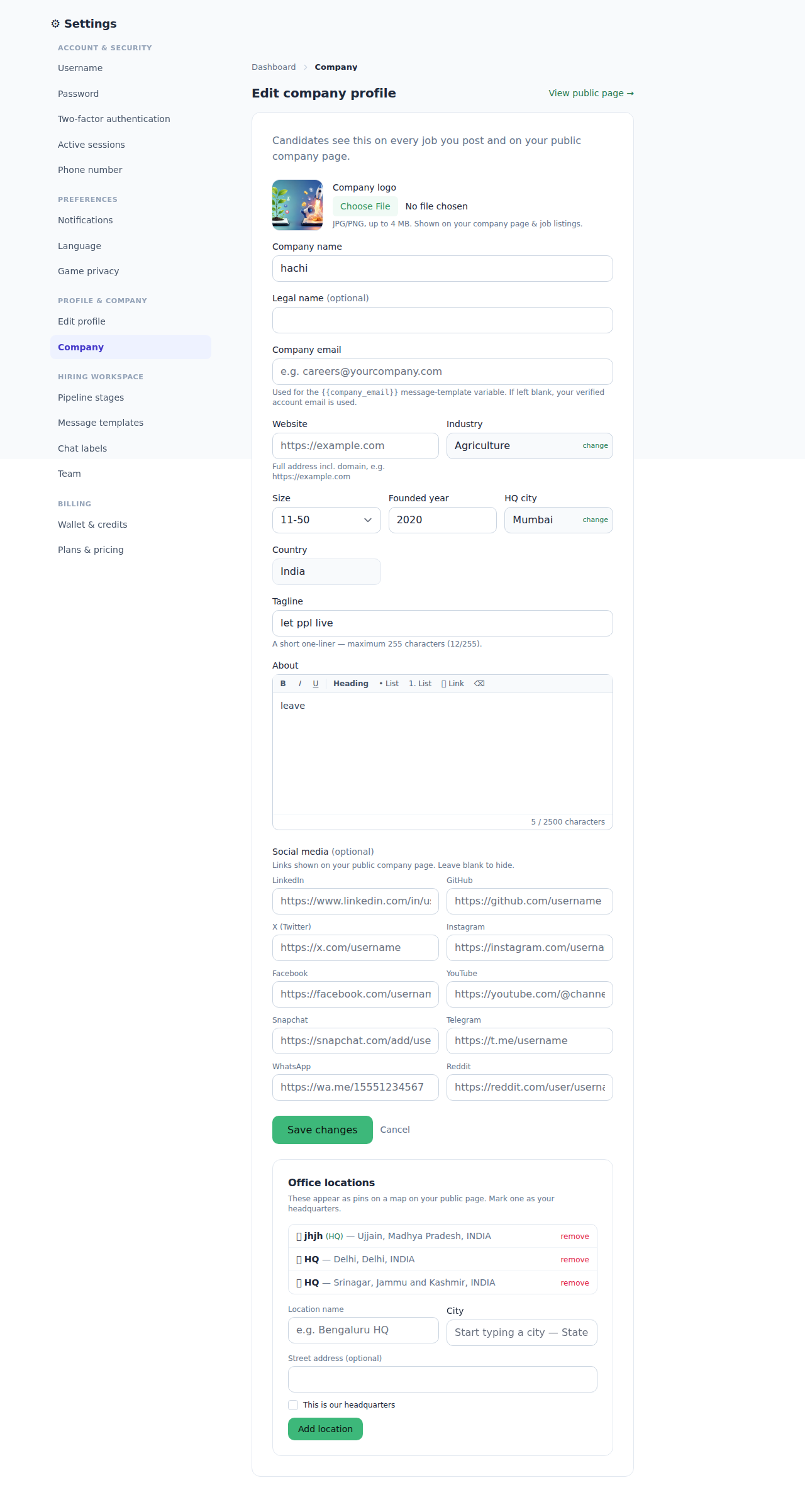
Creating and editing your company profile is essential for establishing your presence on Broxer. This profile will help candidates understand who you are and what you represent.
- Log in to your Broxer employer account.
- Navigate to the "Company Profile" section from the dashboard.
- Fill in the necessary fields, including:
- Company Name - The official name of your business.
- শিল্প - Select the industry that best represents your company.
- Company Description - Provide a brief overview of your company culture and what it offers.
- অবস্থান - Specify the city and state where your company operates.
- Upload your company logo in a high-resolution format (preferably PNG or JPG).
- Review all the information and click "Save" to finalize your profile.
Tip: Make sure your company description reflects your brand values and work environment to attract the right candidates.
Gotcha: Ensure that your logo file is not larger than 2MB, as larger files may not be uploaded successfully.
ব্র্যান্ডিং
Setting your company branding is crucial for maintaining a consistent image across job postings and documents. This branding will help your business stand out in the competitive job market.
- From the dashboard, click on "Branding" in the settings menu.
- Upload your company’s brand colors, logos, and other relevant assets.
- Fill in the branding guidelines which include:
- Primary Color - Choose a color that represents your brand.
- Secondary Color - Select a complementary color for accentuation.
- Font Style - Specify preferred font for written documents.
- Once all the branding elements are added, click "Save Changes" to apply them.
Tip: Consistent use of branding elements across all platforms will reinforce your company image.
Gotcha: Double-check the color codes you enter for accuracy to avoid discrepancies in your branding.
Your team
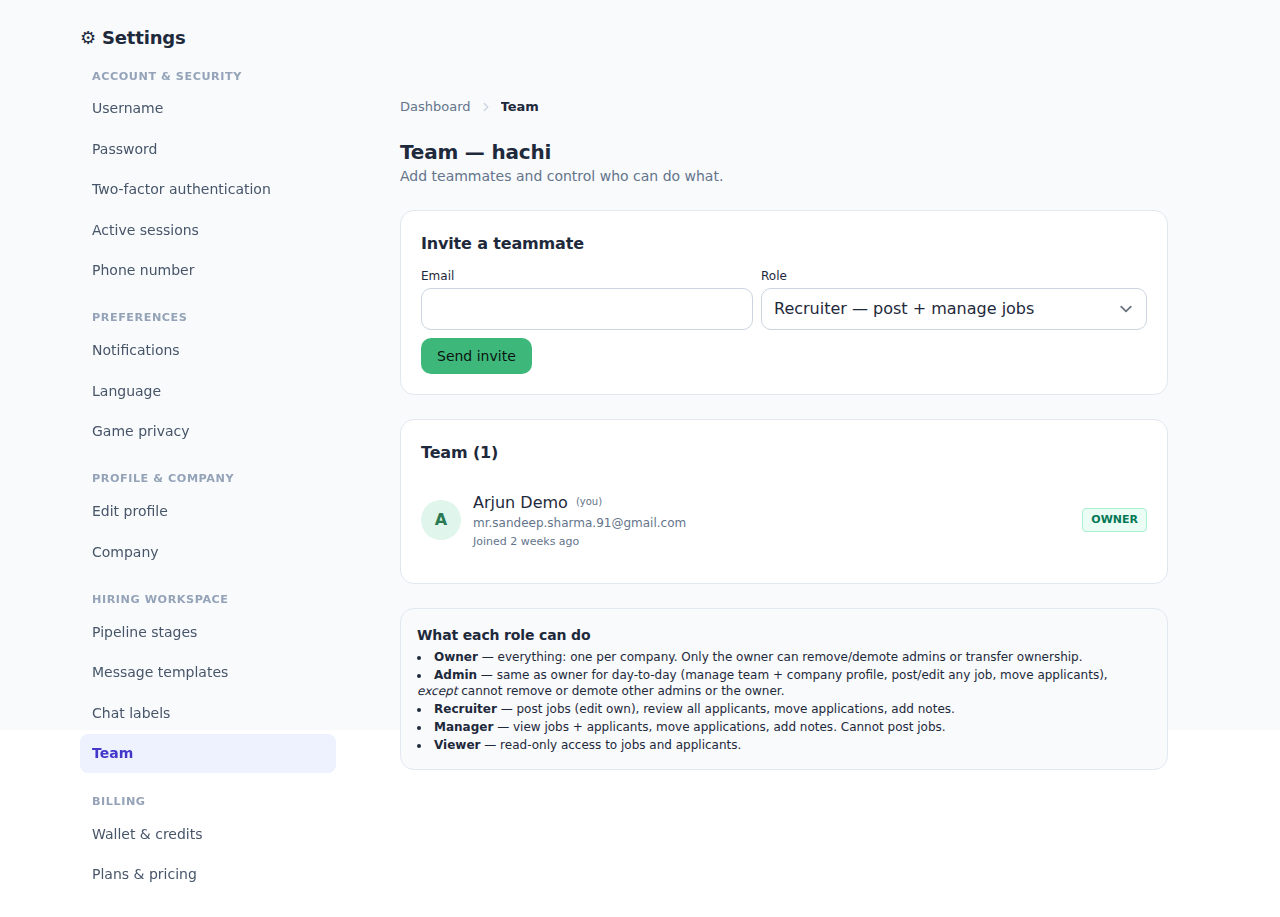
Adding team members and defining their roles is essential for streamlining the hiring process. This feature ensures all stakeholders can collaborate effectively.
- Navigate to the "Your Team" section from your dashboard.
- Click on the "Invite Team Member" button.
- Enter the email addresses of the team members you wish to invite.
- Select the roles for each team member from the dropdown menu, such as:
- নিয়োগকারী - Responsible for sourcing candidates.
- Hiring Manager - Oversees the hiring process.
- Interviewer - Conducts interviews and assessments.
- Click "Send Invites" to send them the link to join your company on Broxer.
Tip: Ensure to invite only those team members who will be involved in the hiring process to keep your team manageable.
Gotcha: Be aware that team members must accept the invitation to have access to your company’s hiring dashboard. Keep an eye on any outstanding invites.